Short answer: In GA4, go to Admin → Data display → Channel groups, copy the default group and add an “AI assistants” channel that matches sources like chatgpt.com, perplexity.ai, gemini.google.com, copilot.microsoft.com and claude.ai, placed above Referral. Then mark your form, call and chat events as key events so reports show AI leads, not just visits.
Why AI visits hide in your reports
When a buyer clicks your link inside a ChatGPT answer, GA4 has to decide which channel that visit belongs to. For years the answer was “Referral”, lumped in with directories, your OEM site and random blogs. Some AI visits showed up as “Direct” with no source at all.
That makes it hard to answer the one question that matters: is AI sending me buyers, and do they turn into leads?
The fix takes about 10 minutes and has two parts:
- Give AI traffic its own channel.
- Tell GA4 which actions count as a lead.
What GA4 already does for you
In May 2026 Google added a built-in AI Assistant channel to GA4’s default channel group. Google says it covers visits from sources like ChatGPT, Gemini, DeepSeek, Copilot and Grok. When GA4 recognizes the referrer, it sets the medium to ai-assistant.
Two limits:
- Google has not published the full list of AI sites it recognizes. You cannot see or edit it.
- It excludes Google’s own AI Overviews and AI Mode. Clicks from those still count as Organic Search.
So check your Traffic acquisition report first. If you already see an “AI Assistant” row, the built-in channel is working. The custom group below is still worth building, because you control which sites are in it.
Build your own “AI assistants” channel in 10 minutes
You need Editor access or above on the GA4 property.
- In GA4, click Admin (the gear, bottom left).
- Under Data display, click Channel groups.
- Find the default channel group and copy it, so all your normal channels come along. Name the copy “Channels with AI”.
- Add a new channel and name it “AI assistants”.
- Set the condition to Source → matches regex and paste the regex from the next section.
- Add a second condition joined with OR: Medium → exactly matches →
ai-assistant. That catches anything Google’s list recognizes. - Save the channel, then drag it above Referral and Organic Search. GA4 puts each visit in the first channel it matches, so order matters.
- Click Save group.
Standard GA4 properties allow two custom channel groups, so this uses one of them. Google says custom channel groups apply to your reports retroactively, so you see past months too.
The regex to paste
Copy this into the Source condition:
.*(chatgpt\.com|openai\.com|perplexity\.ai|gemini\.google\.com|copilot\.microsoft\.com|claude\.ai).*
| AI assistant | Source you will see in GA4 |
|---|---|
| ChatGPT | chatgpt.com (older links: chat.openai.com) |
| Perplexity | perplexity.ai |
| Google Gemini | gemini.google.com |
| Microsoft Copilot | copilot.microsoft.com |
| Claude | claude.ai |
Before you trust it, open Reports → Acquisition → Traffic acquisition, switch the first column to Session source, and search “ai” and “gpt”. If you find another AI source sending visits, add it to the list with a | between names.
Turn visits into leads: set up key events
Visits are nice. Leads pay the bills. GA4 calls the actions you care about key events.
Pick your lead events
For a dealer, a lead is usually one of these:
- A form submit: test drive, trade-in value, credit application, “is this car still available”. Google’s recommended event name for this is
generate_lead. - A tap on your phone number (
tel:link) or text button. - A chat that collects a phone number.
If your website platform or chat tool already sends these events to GA4, you will see them under Admin → Data display → Events.
Mark them as key events
- Go to Admin → Data display → Events.
- Find the event, like
generate_lead. - Click the star next to it to mark it as a key event.
Google notes this counts from the moment you mark it; it does not change past data. Give standard reports up to 24 hours to update.
How to read the report
Open Reports → Acquisition → Traffic acquisition. Click the dropdown on the first column and choose your new “Channels with AI” group. Add Key events as a column if it is not there.
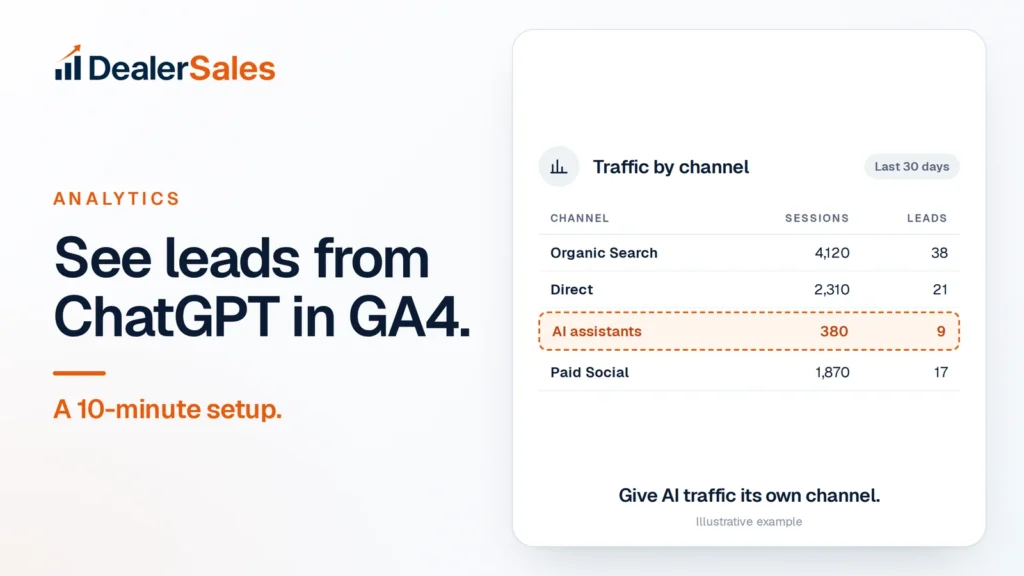
Here is an example of what that table can look like. These numbers are made up for illustration, not from a real dealer:
| Channel | Sessions | Leads |
|---|---|---|
| Organic Search | 4,120 | 38 |
| Direct | 2,310 | 21 |
| AI assistants | 380 | 9 |
| Paid Social | 1,870 | 17 |
In this example, AI sends far fewer visits than Google, but about 1 in 42 AI visits becomes a lead, against about 1 in 108 from Organic Search. That pattern is what to look for in your own data: small numbers, high intent. Track it monthly next to a simple check of whether ChatGPT names your store.
Proof: Google’s AI counts too, just in a different row. One Australian dealer’s pages were shown 264,000 times in Google AI Overviews and AI Mode in 90 days, and organic visits grew from about 500 to over 5,500 a month. See the numbers.
For those Google AI numbers, use Search Console, not GA4. See how to get your dealership into Google AI Overviews.
Why your AI numbers are lower than reality
Treat the AI row as a floor, not the full count.
- Not every AI visit passes a referrer. Clicks from some mobile apps and links a buyer copies and pastes often arrive with no source, so GA4 files them as Direct.
- Many buyers never click. They read the AI answer, then search your name on Google or drive over. That shows up as branded search, direct visits or a walk-in.
- Google’s AI is counted elsewhere. AI Overviews and AI Mode clicks sit in Organic Search.
Close the gap in two cheap ways. Add “ChatGPT or another AI tool” to the “How did you hear about us?” dropdown on your forms. And ask every walk-in the same question at the desk.
A note on UTM tags
ChatGPT adds utm_source=chatgpt.com to links in its answers, which helps GA4 credit the visit. For links you control, like ChatGPT ads, add your own tags such as utm_source=chatgpt&utm_medium=paid. That keeps paid clicks out of your free AI channel, so you know which one is working.
What to do next
Build the channel and mark your lead events today; it takes about 10 minutes. Check the AI row once a month, next to your leads from Google and Meta. If you want the regex, the event checklist and the report steps in one printable page, grab the setup guide below.
Quick answers
Does ChatGPT traffic show up in Google Analytics?
Yes. Clicks from ChatGPT answers usually show as source chatgpt.com, and GA4 now has a built-in AI Assistant channel. Some visits still arrive with no referrer and land in Direct.
Where is the channel groups setting in GA4?
Go to Admin, then Data display, then Channel groups. You need Editor access or above to create one.
Do Google AI Overviews count as AI assistant traffic in GA4?
No. Google counts clicks from AI Overviews and AI Mode as Organic Search. Use Search Console to see how your pages perform in Google’s AI features.
Sources
- Custom channel groups (Google Analytics Help)
- Default channel group (Google Analytics Help)
- What’s new in Google Analytics (Google Analytics Help)
- Mark events as key events (Google Analytics Help)
- Publishers and developers FAQ (OpenAI Help Center)
Email me the GA4 setup guide
Get the channel regex, the key-event checklist and the report setup on one page. We will email it to you. No sales call.